Using Pi Sandbox for Development
Pi Network apps run through Pi Browser. To develop these apps, the Pi Core Team provides a development sandbox that behaves like the production browser. It lets you run your services locally during development.
Use the SDK in Sandbox Mode
The Pi SDK must be configured to work in the sandbox environment. Add the snippet below to your app codebase.
<head>
  <!-- ... other <head> content (meta, title, styles, etc.) ... -->
  <script src="https://sdk.minepi.com/pi-sdk.js"></script>
  <script>
    Pi.init({ version: "2.0", sandbox: true });
  </script>
</head>
You can now run your app in the sandbox environment
(https://sandbox.minepi.com) in a desktop browser, as long as you have
configured a development URL in the developer portal. Open
develop.pinet.com in Pi Browser to configure this. Afterward, your Sandbox
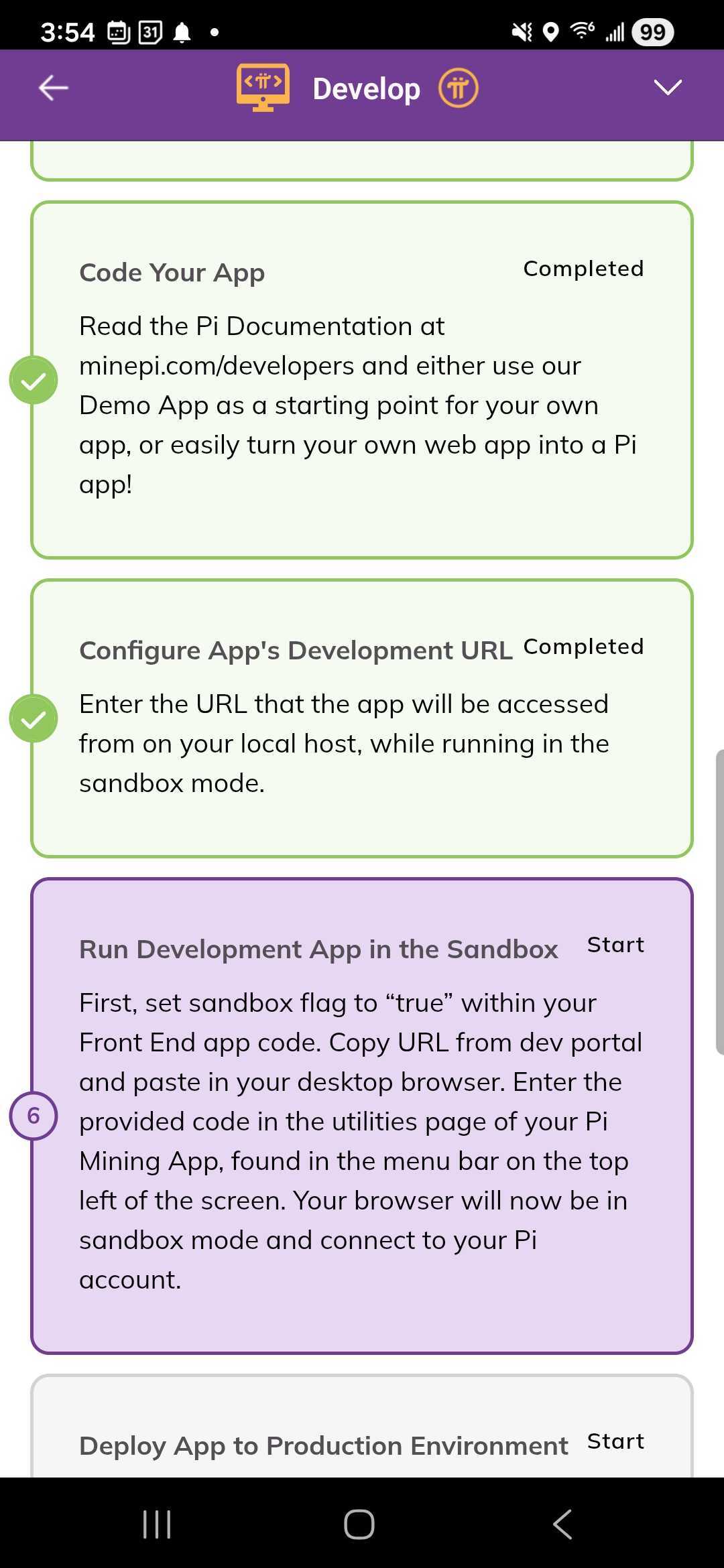
URL appears under “Run Development App in the Sandbox” in your app checklist.
Typically, if you’re using a framework or a boilerplate that supports it, you should be able to set up your
sandbox flag to match your development environment. For example, most good Node boilerplates will set up the
value of process.env.NODE_ENV to either "development" or "production", and you could do something like:
Pi.init({ version: "2.0", sandbox: <%= process.env.NODE_ENV !== 'production' %> }). This depends on your
setup, but running the Pi SDK in sandbox mode will generally happen whenever your app is running in development.
Fortunately, the Core Team provides a set of convenience wrappers that automatically detect development mode and set the sandbox flag appropriately.
Use the Sandbox
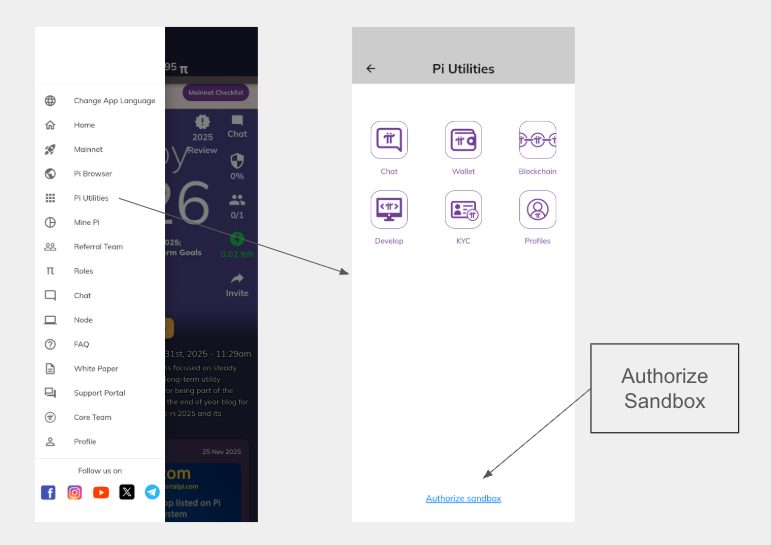
When you visit your app’s sandbox URL, it shows an authorization code. Go to the Pi app and navigate to “Pi Utilities”. At the bottom of that screen, tap “Authorize Sandbox”. Then enter the code.